
Most people job hunt by opening five different job boards and searching the same thing in each one. There's a faster way, and you already use it every day: Google.
Google pulls job listings from company career pages, job boards and staffing sites into one place. Type the job you want and you get a single list, with filters, a save button and links to apply. One search instead of five tabs.
The problem is most people type "jobs" into Google, scroll a little and give up. Here's how to actually use it, from someone who's spent years watching which applications get noticed and which ones don't.
How Google's job search works
1. Type the job, then the place
Search the way you'd say it out loud:
- project manager jobs in Houston
- nursing jobs near me
- customer success jobs work from home
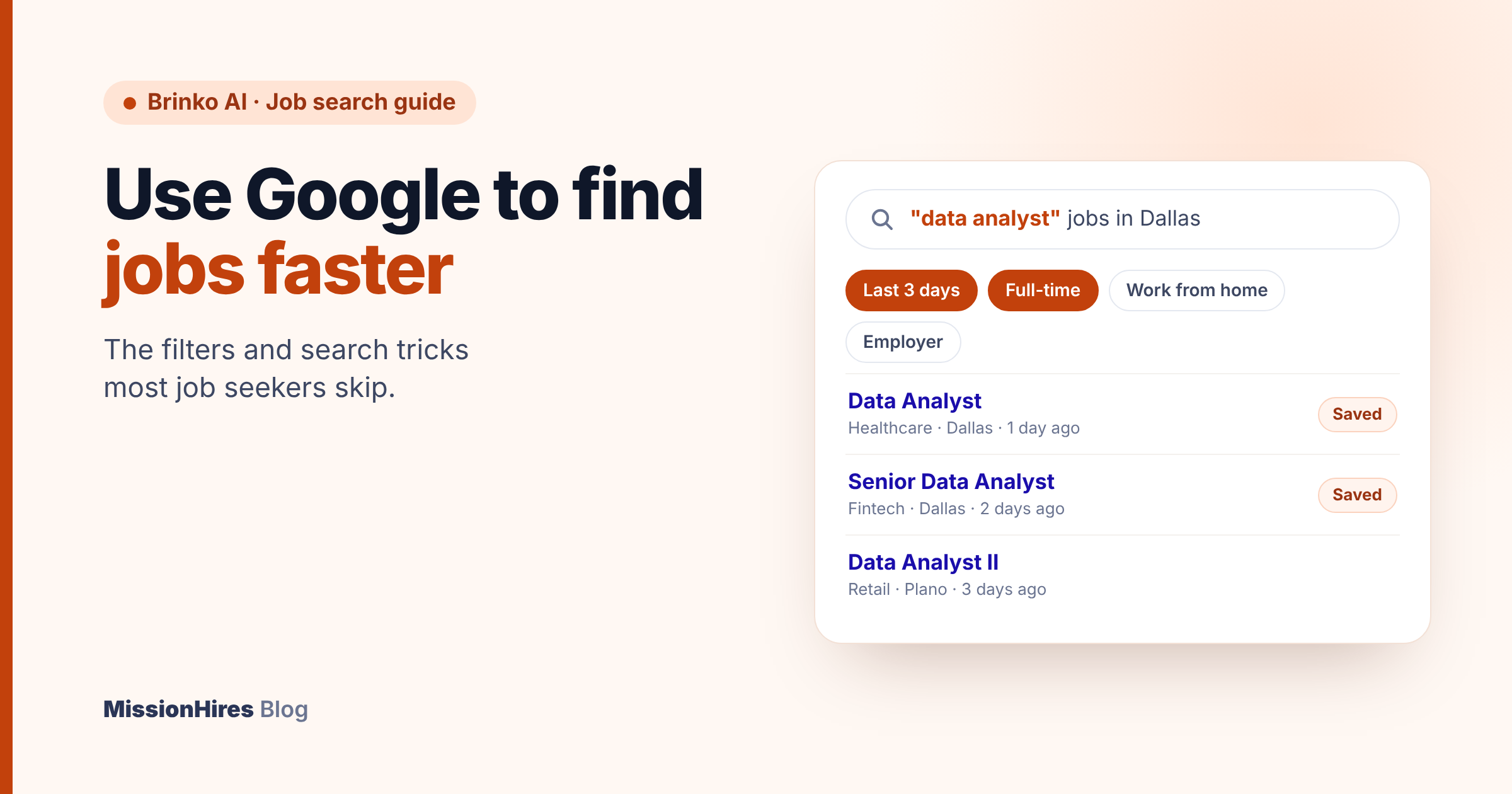
Google shows a jobs box at the top of the results with a few listings. Click the button at the bottom of the box to open the full list. That's where the real search happens (Google Search Help).
2. Use the filters
Across the top of the jobs list you'll see filters. They change by search and country, but they usually let you narrow by things like work from home, date posted, job type and employer. Two to always use:
- Work from home, if you want remote jobs only.
- Date posted, set to the last few days. Apply in the first few days and a recruiter is more likely to see you before the pile gets big.
3. Save the ones you like
Click the save icon next to any job. To see your list later, search for any job and open Saved (Google Search Help). It's a simple way to keep a shortlist without a spreadsheet.
4. Check the commute
If you set your home address in Google Maps, Google can show the commute time under each job. Worth a look before you apply to something an hour away.
6 search tricks that save hours
Google's job search understands some of the same tricks recruiters use (SerpApi).
1. Put the exact title in quotes. "senior product manager" jobs skips the junior and "product marketing" results.
2. Search two titles at once with OR. ("data analyst" OR "BI analyst") jobs in Dallas. The OR must be in capitals.
3. Only see new jobs. Add after: and a date to the search, like electrician jobs Houston after:2026-11-18. You only get jobs posted since then.
4. Try the titles companies actually use. A "customer success manager" at one company is an "account manager" at another. Search both.
5. Go straight to company career pages. Search "careers" "project manager" Austin in regular Google search. You'll find jobs posted on company websites that never made it to a job board, where there's often less competition.
6. Search by your skill, not just the title. Salesforce administrator jobs or OSHA 30 superintendent jobs brings up roles that match what you can actually do.
Mistakes that waste your time
- Searching only "jobs near me". You'll get everything from cashier to surgeon. Always add a title.
- Applying to the same job three times. Google often shows the same job from the company site and a few job boards. Apply once, on the company's own site when you can.
- Ignoring the date. A listing from six weeks ago may already be filled. Check when it was posted before you spend 30 minutes on a cover letter.
- Applying to everything that looks close. This is the big one. Fifty rushed applications usually lose to ten good ones. Before you apply, ask yourself honestly whether you match most of what the job asks for.
Know your fit before you click, with Brinko AI
That last mistake is why we built Brinko AI. It's a free Chrome extension that works right on Google's job results.
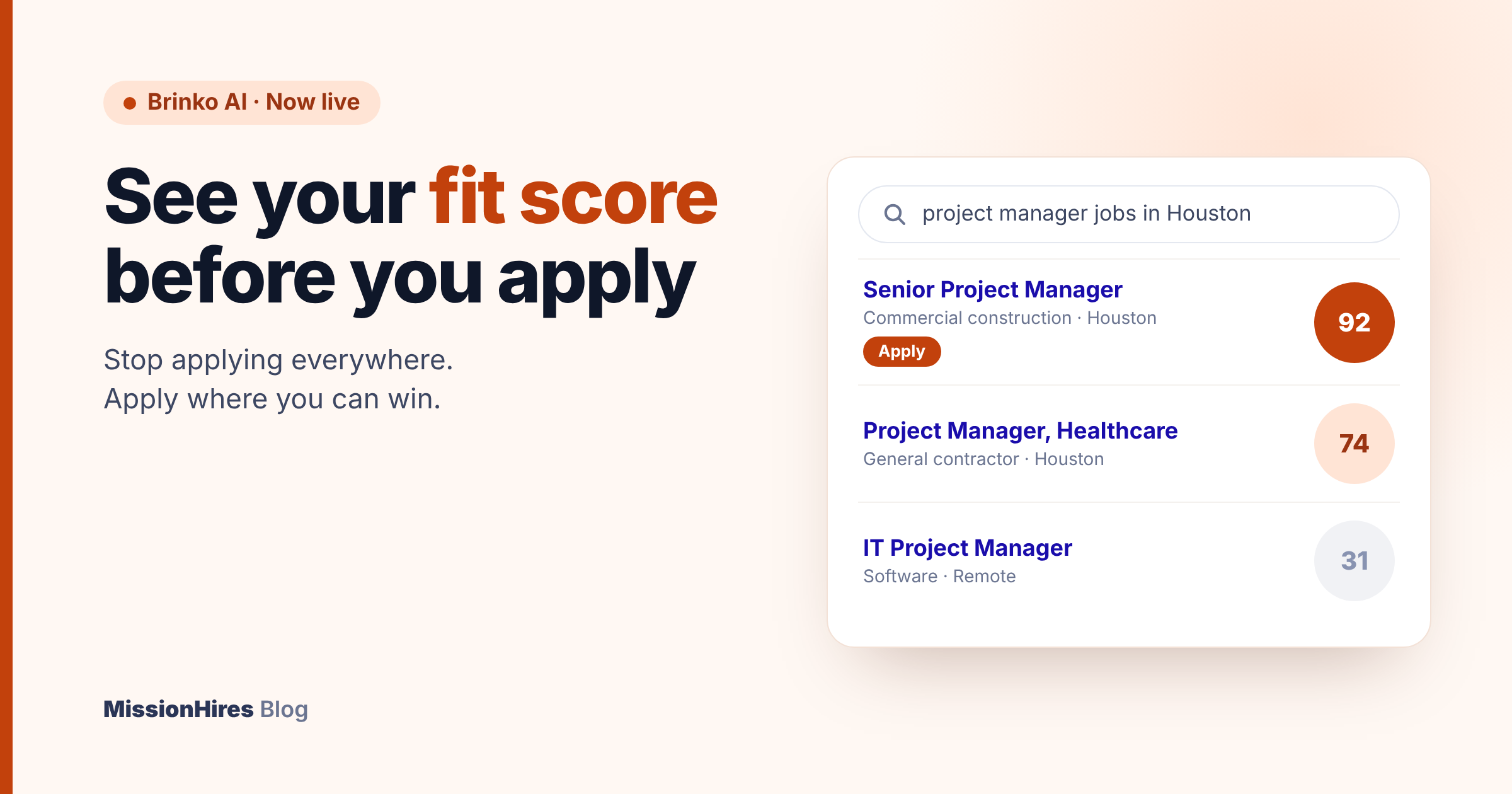
Add your resume once, search for the job you want, and every result shows a fit score: how well your background matches what that job asks for. Open the scorecard to see where you're strong and where you fall short, then hit Apply on the ones worth your time.
Same Google search you already know. You just stop guessing.
Add Brinko AI to Chrome, it's free
Your next search
Pick one title, add your city or "remote", filter to the last few days, and save the five that look best. That's a better morning than scrolling five job boards.
Frequently asked questions
How do I search for jobs on Google?
Type the job and the place into Google, like "marketing jobs in Miami" or "nursing jobs near me". Click the button under the jobs box to open the full list, then use the filters to narrow it down.
Is Google job search free?
Yes. Searching, saving jobs and clicking through to apply are free. You apply on the company's site or the job board where the listing was posted.
How do I find remote jobs on Google?
Add "work from home" or "remote" to your search, or use the work from home filter in the jobs list.
How do I see only new jobs on Google?
Use the date posted filter in the jobs list, or add after: and a date to your search, like after:2026-11-18.
Can Google tell me if I'm qualified for a job?
Not on its own. A tool like Brinko AI adds a fit score to Google's job results by comparing each job to your resume.